Always Know What’s Happening
Voice dictation works best when you have complete clarity about your recording state. VocaMac provides several layers of feedback so you can tell whether you are idle, recording, processing, or ready for another dictation.
Menu Bar Icon
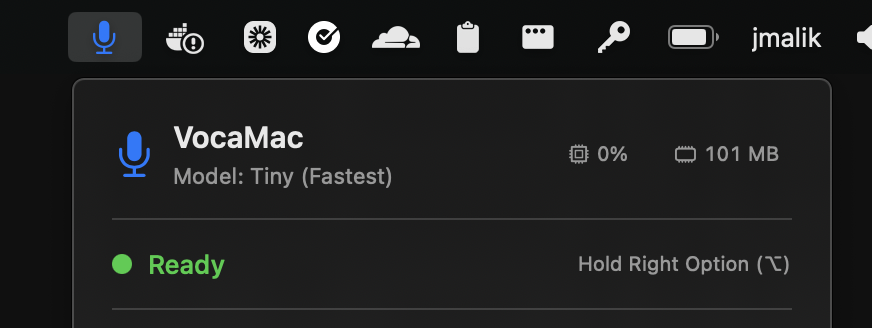
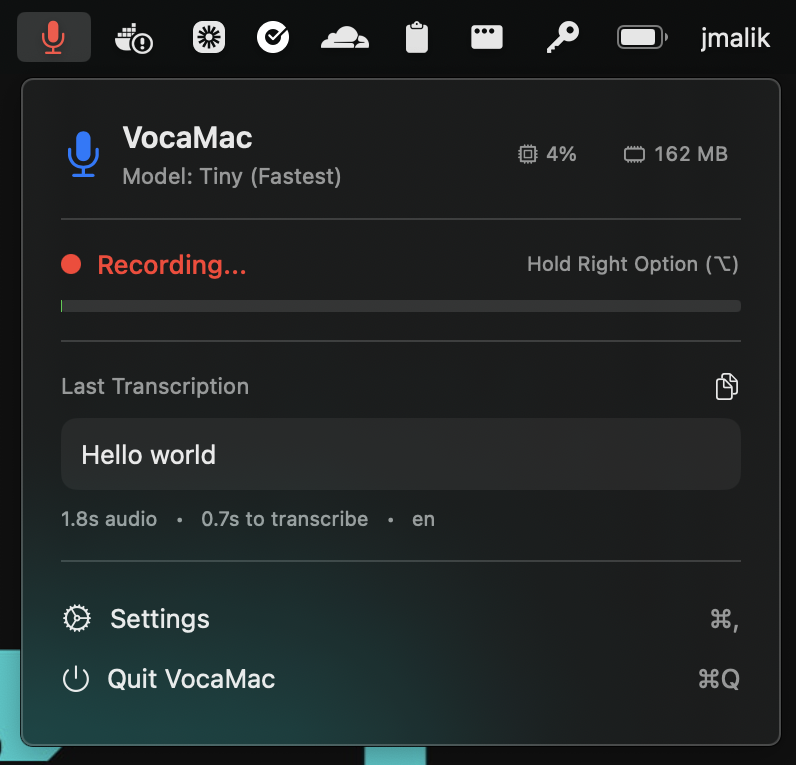
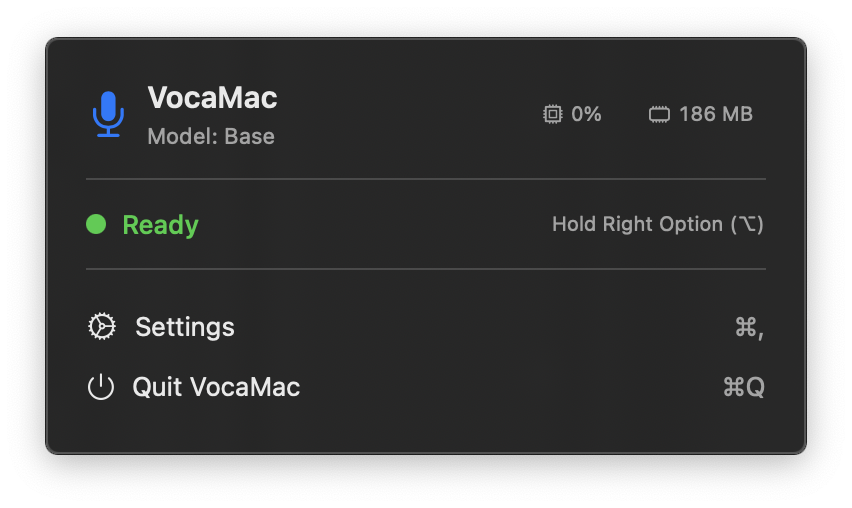
The VocaMac menu-bar icon is one indicator of recording status. Its treatment changes instantly, while the popover and status text provide the words that color alone cannot:
- Idle: VocaMac is running and ready to use. No recording is active.
- Recording: Audio is being captured and the popover/indicator shows the active state.
- Processing or error: The popover exposes the current status and a useful message when model or audio work needs attention.
The icon treatment is a quick glanceable cue, while the popover and status text provide the authoritative state. Color is intentionally not the only signal.
Real-Time Audio Level Indicator
The popover panel displays a live audio level meter while you’re recording. This horizontal bar shows your microphone’s input volume in real time, helping you understand whether you’re speaking loudly enough, too softly, or at an ideal level.
The audio level indicator serves multiple purposes:
- Confidence building: see your voice being captured as you speak
- Troubleshooting: if levels are flat or minimal, your microphone may not be working or properly configured
- Microphone testing: adjust your distance from the mic or speak louder if levels are consistently low
- Acoustic feedback: understand how your environment is affecting audio quality
The meter updates continuously while recording and disappears when you finish. No guessing games with your input levels.
Floating Cursor Indicator
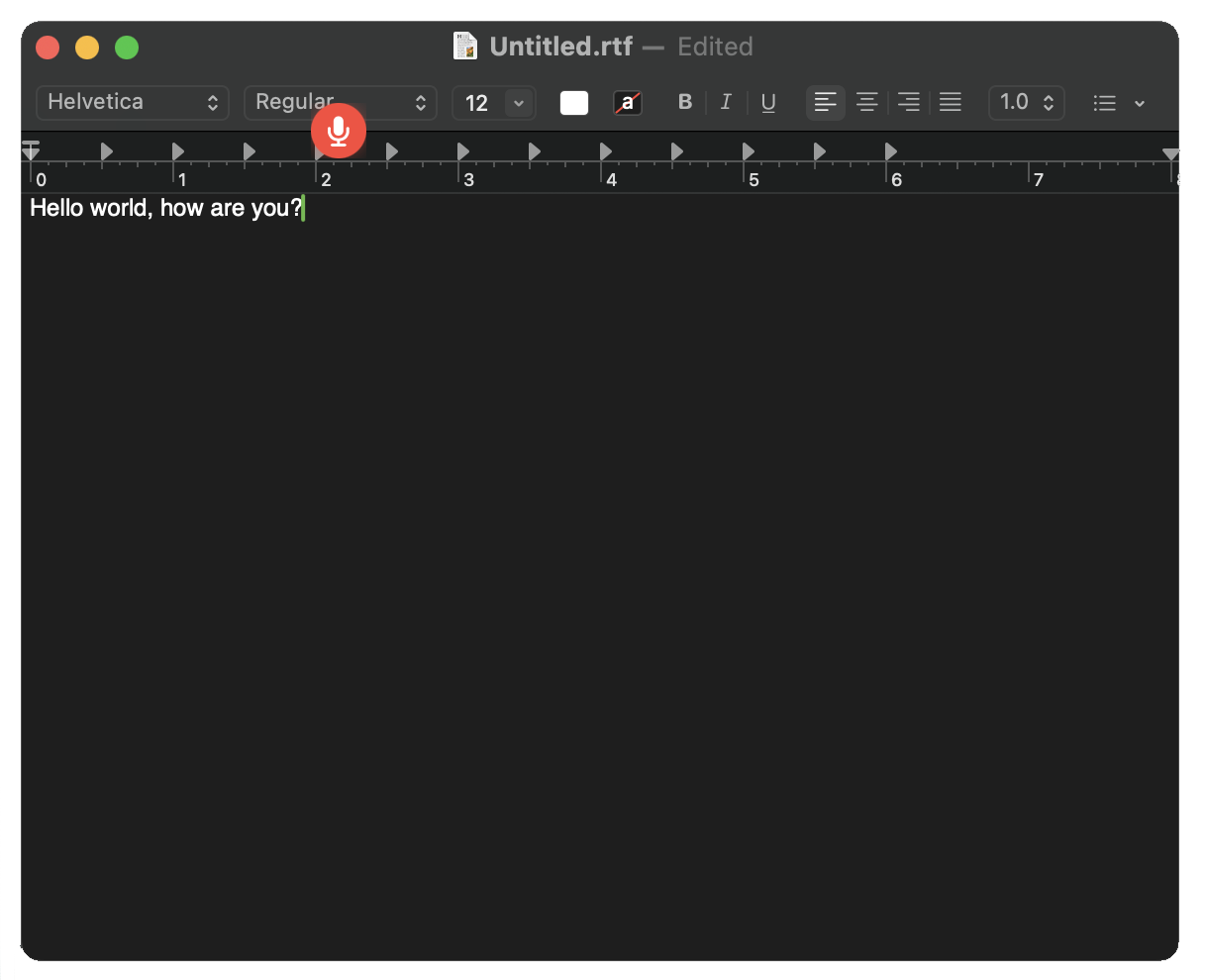
VocaMac can optionally display a small floating microphone icon that appears near your text cursor while you’re recording. This is especially useful when working across multiple windows, fullscreen apps, or when your menu bar is hidden.
The cursor indicator provides:
- Context awareness: you can see exactly where your text will be inserted, even when the menu bar isn’t visible
- Window-specific confirmation: in applications with multiple text fields, it shows which field is active for dictation
- Minimal distraction: the icon is small and subtle, placed just below your cursor position
The floating near-cursor indicator is the recording overlay. In Settings → Application, set Recording Overlay Style to Minimal or Live panel and Position to Near cursor. Set Style to Off if you prefer the menu bar icon alone.
Why Visual Feedback Matters
Voice dictation introduces a layer of abstraction between you and your text input. Unlike typing, where you see each keystroke appear instantly, dictation requires a round trip: speak, process, transcribe, insert. Without clear visual feedback, you’re flying blind.
Studies on speech interfaces show that users feel significantly more confident and make fewer corrections when they receive immediate visual confirmation of recording state. The three-layer feedback system in VocaMac addresses this:
- Menu bar icon: global, always visible status
- Audio level: real-time proof that your voice is being captured
- Cursor indicator: contextual placement of your output
Together, these create a complete feedback loop that matches the directness of keyboard input.
Combining Feedback Sources
Many users rely on all three feedback sources simultaneously. While recording in a fullscreen text editor:
- You glance at the menu bar and see the recording state
- You see the audio level meter climbing in the popover (your voice is being captured)
- You see the cursor indicator blinking near your text field (this is where your words will appear)
Each feedback source reinforces the others, creating absolute confidence that your dictation is working as expected.
If any of these signals is missing or unclear, you can adjust settings or check your audio configuration. VocaMac’s feedback system makes troubleshooting straightforward.
Accessibility and Visibility
The menu-bar state uses icon treatment, status text, and the popover alongside color. The audio level meter provides another signal, while the cursor indicator keeps recording context near the active text field. Together these make feedback clearer without relying on color alone.
You control what’s visible and when. Customize your feedback experience in Settings to match your preferences and workflow.
Ready to try Visual Feedback?
Install VocaMac