How It Works
Push-to-Talk is the default activation mode in VocaMac. It’s designed to feel as natural as using a walkie-talkie: hold to speak, release to transcribe.
- Press and hold your chosen hotkey (Right Option ⌥ by default)
- Speak naturally while the key is held down
- Release the key when you’re done
- Text appears at your cursor, wherever you’re typing
After you release the key, VocaMac processes the recording and inserts the result at the active cursor. The time varies with recording length, selected model, and Mac hardware.
Why Push-to-Talk?
Most voice dictation apps use a click-to-start, click-to-stop model. That sounds simple, but in practice it creates ambiguity: Am I recording right now? Did I forget to stop?
Push-to-Talk eliminates that entirely:
- No ambiguity: if your finger is on the key, you’re recording. If it’s not, you’re not.
- No forgotten recordings: release the key and recording stops automatically.
- Clear feedback: the menu bar and popover expose the active recording state; color is not the only signal.
- Muscle memory: after a few uses, it becomes second nature. Like holding Shift to capitalize.
Choosing Your Hotkey
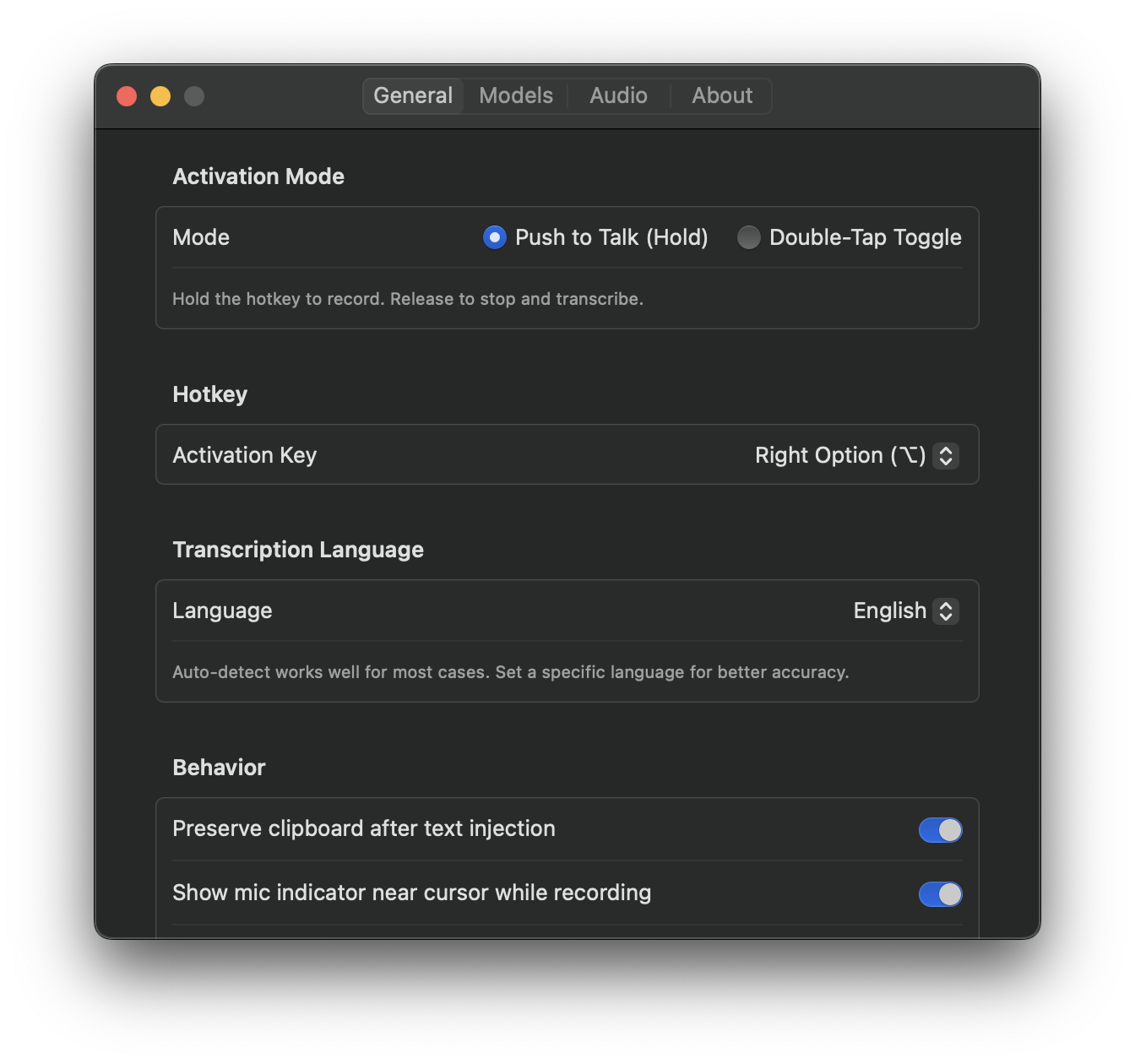
VocaMac supports a wide range of hotkeys for Push-to-Talk activation:
- Right Option (⌥) - the default, ergonomic and rarely used by other apps
- Left Option (⌥) - if you prefer the left side
- Right Command (⌘) - for Command-key enthusiasts
- Right Shift (⇧) - another good ergonomic choice
- Right Control (⌃) - a comfortable reach for many keyboards
- Function keys (F5-F12) - if you prefer dedicated keys
- Fn key - the function key itself
Want a key that isn’t in the list? Click Record next to the preset picker and press any key — VocaMac captures it and shows it as your “Custom” key (press Escape to cancel). While VocaMac is running, that key is reserved for activation.
You can change your hotkey anytime in Settings → Dictation.
Visual Feedback
While recording, VocaMac gives you clear visual cues so you always know what’s happening:
- Menu bar icon and status text indicate active recording
- Audio level indicator shows real-time input volume in the popover
- Cursor indicator (optional) shows a floating mic icon near your text cursor
Works Across Text Fields
Push-to-Talk is intended for applications and fields that accept macOS text insertion, including:
- Text editors and IDEs (VS Code, Xcode, Sublime Text)
- Browsers (Chrome, Safari, Firefox, Arc)
- Communication apps (Slack, Teams, Discord)
- Productivity apps (Notes, Pages, Google Docs)
- Terminal emulators
- Email clients
VocaMac injects text at your cursor position using macOS accessibility APIs. The exact result depends on the target app, the active field, and Accessibility permission.
Compared to Double-Tap Toggle
VocaMac also offers a Double-Tap Toggle mode as an alternative. Here’s how they compare:
| Push-to-Talk | Double-Tap Toggle | |
|---|---|---|
| Activate | Hold key | Double-tap key |
| Deactivate | Release key | Double-tap again |
| Best for | Short dictations, quick notes | Longer dictations, hands-free |
| Risk of forgetting | None | Possible |
| Physical effort | Hold key continuously | Tap twice to start/stop |
Most users prefer Push-to-Talk for its simplicity and reliability. But if you regularly dictate for more than 30 seconds at a time, Double-Tap Toggle might be more comfortable.
You can switch between modes anytime in Settings → Dictation.
Ready to try Push-to-Talk?
Install VocaMac