System-Wide Text Injection
Transcribed text appears wherever your cursor is. Browsers, Slack, VS Code, spreadsheets, terminals. Everywhere.
Dictation Without Limits
Traditional voice-to-text on macOS requires you to speak, copy the result, then paste it into your app. VocaMac skips that friction entirely. When you finish dictating, your words appear instantly at your cursor, regardless of which application you’re using.
This works in your browser, code editor, terminal, spreadsheet, or any other macOS app. No special setup per application. No compatibility lists to check. Just speak and type.
How It Works
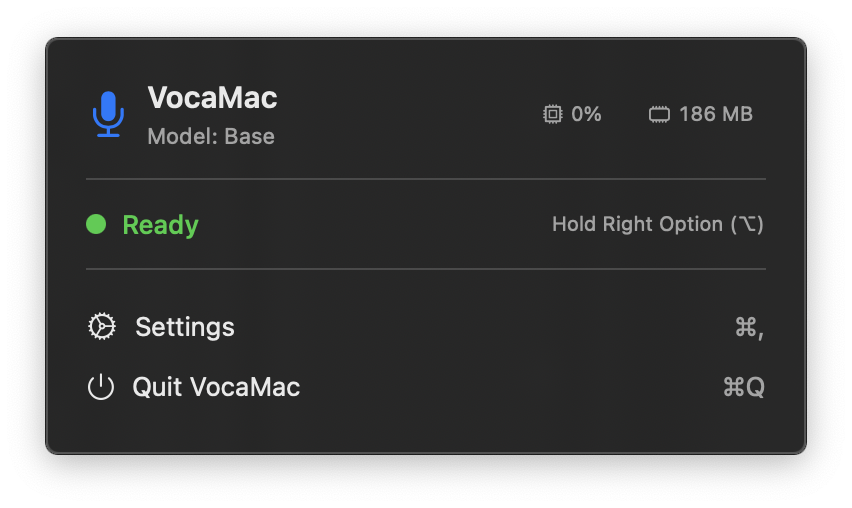
VocaMac uses macOS accessibility APIs to detect your cursor position in the foreground application, then injects text directly into the input field. This is the same technology that powers accessibility features like VoiceOver and Switch Control.
When you stop recording, VocaMac:
- Retrieves the cursor position from the active application
- Sends your transcribed text character by character via the accessibility layer
- Places the text exactly where your cursor is
The process takes just milliseconds. There is no intermediate clipboard step, which means your existing clipboard contents remain untouched.
Supported Applications
System-wide text injection works with any macOS application that respects standard input methods. This includes:
- Browsers: Gmail, Google Docs, Notion, web-based IDEs, comment sections
- Code Editors: VS Code, Xcode, Sublime Text, Nova, BBEdit, Terminal
- Communication: Slack, Discord, Twitter, Mastodon, Signal, iMessage
- Productivity: Microsoft Word, Google Sheets, Numbers, Notion, Apple Pages
- Developer Tools: iTerm2, Zsh, Bash, Python REPLs, Git commit messages
If an application accepts text input and supports accessibility APIs, VocaMac can inject text into it.
Beyond Copy-Paste
Clipboard-based dictation creates unnecessary workflow friction. Your clipboard gets overwritten, breaking your copy-paste rhythm. You need to navigate to a dictation app, paste, then navigate back. This interruption adds up, especially when you’re doing multiple short dictations throughout the day.
With system-wide injection, your workflow stays in your app. Type naturally. Speak naturally. The text appears where you need it, instantly.
Configuration Options
VocaMac respects your preferences for text injection. Configure:
- Punctuation handling: Automatically add periods, commas, or question marks at the end of dictations
- Capitalization: Auto-capitalize the first letter of sentences
- Whitespace: Add trailing spaces automatically for faster continuation
- Advanced: Insert formatting like markdown bold or code blocks
These settings apply globally across all applications, ensuring consistent behavior everywhere.
Privacy and Control
Text injection happens entirely on your device. VocaMac uses only local accessibility APIs provided by macOS. Your transcriptions are never sent to external servers. Your clipboard is never touched. You remain in complete control of what gets typed and when.
Enable accessibility permissions for VocaMac once, then use system-wide dictation in every app on your Mac. No per-app configuration needed. Just speak and create.
Ready to try System-Wide Text Injection?
Install VocaMac - It's Free