Push-to-Talk
Hold a hotkey to record. Release to transcribe. Simple, predictable, no surprises.
How It Works
Push-to-Talk is the default activation mode in VocaMac. It’s designed to feel as natural as using a walkie-talkie: hold to speak, release to transcribe.
- Press and hold your chosen hotkey (Right Option ⌥ by default)
- Speak naturally while the key is held down
- Release the key when you’re done
- Text appears at your cursor, wherever you’re typing
The entire flow takes less than a second from release to text appearing on screen. There’s no delay, no loading spinner, no waiting. Just your words, typed out.
Why Push-to-Talk?
Most voice dictation apps use a click-to-start, click-to-stop model. That sounds simple, but in practice it creates ambiguity: Am I recording right now? Did I forget to stop?
Push-to-Talk eliminates that entirely:
- No ambiguity: if your finger is on the key, you’re recording. If it’s not, you’re not.
- No forgotten recordings: release the key and recording stops automatically.
- Instant feedback: the menu bar icon turns green the moment you press, and returns to normal when you release.
- Muscle memory: after a few uses, it becomes second nature. Like holding Shift to capitalize.
Choosing Your Hotkey
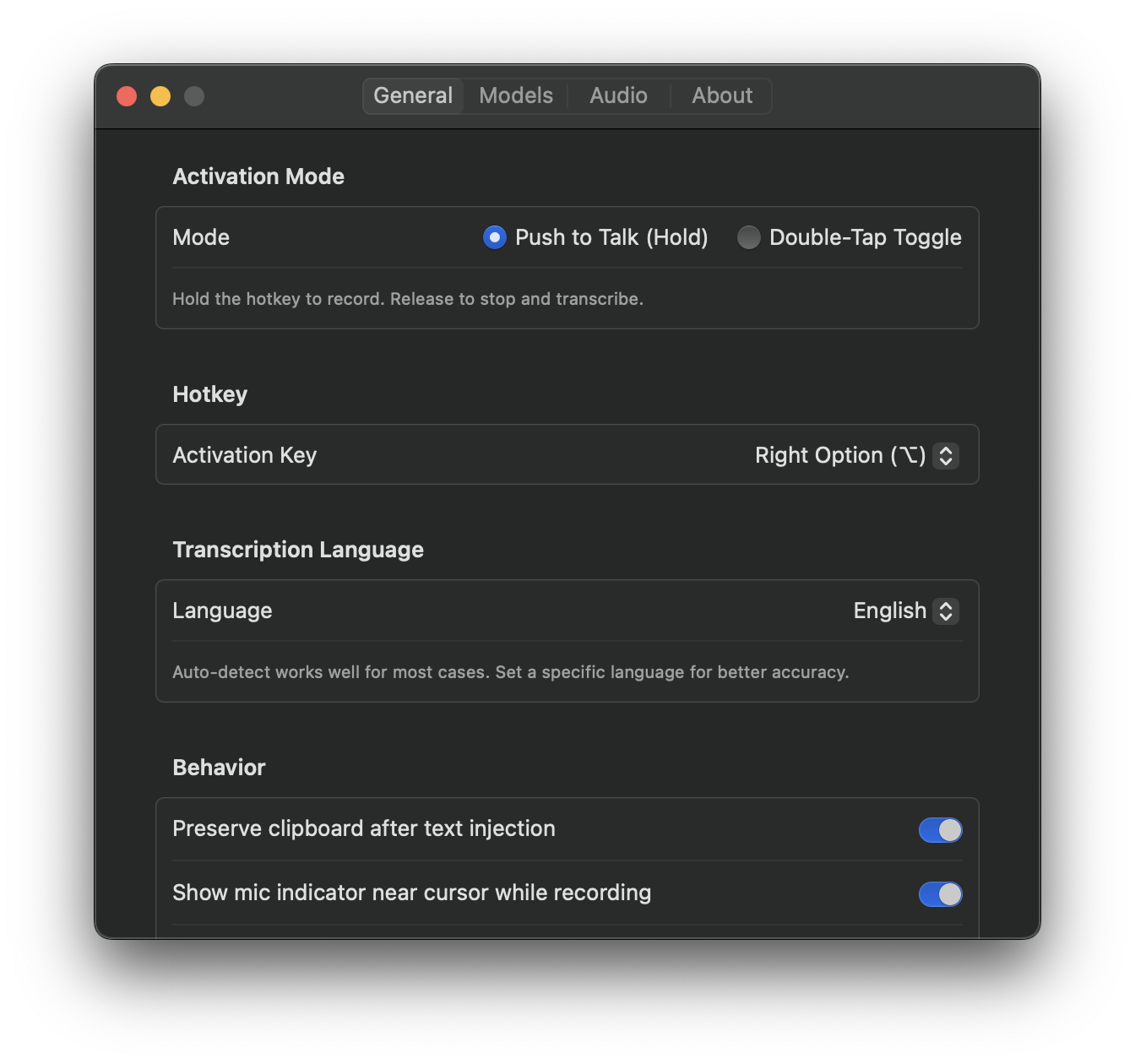
VocaMac supports a wide range of hotkeys for Push-to-Talk activation:
- Right Option (⌥) - the default, ergonomic and rarely used by other apps
- Left Option (⌥) - if you prefer the left side
- Right Command (⌘) - for Command-key enthusiasts
- Right Shift (⇧) - another good ergonomic choice
- Function keys (F5-F12) - if you prefer dedicated keys
- Fn key - the function key itself
You can change your hotkey anytime in Settings → General → Activation Key.
Visual Feedback
While recording, VocaMac gives you clear visual cues so you always know what’s happening:
- Menu bar icon turns green to indicate active recording
- Audio level indicator shows real-time input volume in the popover
- Cursor indicator (optional) shows a floating mic icon near your text cursor
Works Everywhere
Push-to-Talk works in any application that accepts text input:
- Text editors and IDEs (VS Code, Xcode, Sublime Text)
- Browsers (Chrome, Safari, Firefox, Arc)
- Communication apps (Slack, Teams, Discord)
- Productivity apps (Notes, Pages, Google Docs)
- Terminal emulators
- Email clients
VocaMac injects text at your cursor position using macOS accessibility APIs, so it works system-wide without any app-specific integrations.
Compared to Double-Tap Toggle
VocaMac also offers a Double-Tap Toggle mode as an alternative. Here’s how they compare:
| Push-to-Talk | Double-Tap Toggle | |
|---|---|---|
| Activate | Hold key | Double-tap key |
| Deactivate | Release key | Double-tap again |
| Best for | Short dictations, quick notes | Longer dictations, hands-free |
| Risk of forgetting | None | Possible |
| Physical effort | Hold key continuously | Tap twice to start/stop |
Most users prefer Push-to-Talk for its simplicity and reliability. But if you regularly dictate for more than 30 seconds at a time, Double-Tap Toggle might be more comfortable.
You can switch between modes anytime in Settings → General → Activation Mode.
Ready to try Push-to-Talk?
Install VocaMac - It's Free