Launch at Login
Start VocaMac automatically when you log in. Always ready when you need it.
How It Works
Launch at Login is a simple but powerful feature: VocaMac starts automatically when you log into your Mac. You’ll never have to manually launch the app. It’s always there in your menu bar, ready to dictate.
VocaMac uses macOS’s modern SMAppService API to register itself as a login item. This is Apple’s recommended way to add apps to the login sequence, and it works seamlessly with System Settings on macOS 13 and later.
When you enable Launch at Login in VocaMac’s settings, the app registers itself with the system. The next time you log in (or restart your Mac), VocaMac will launch automatically and appear in your menu bar. No dialogue boxes. No extra windows. It simply starts and waits for you to dictate.
Enabling Launch at Login
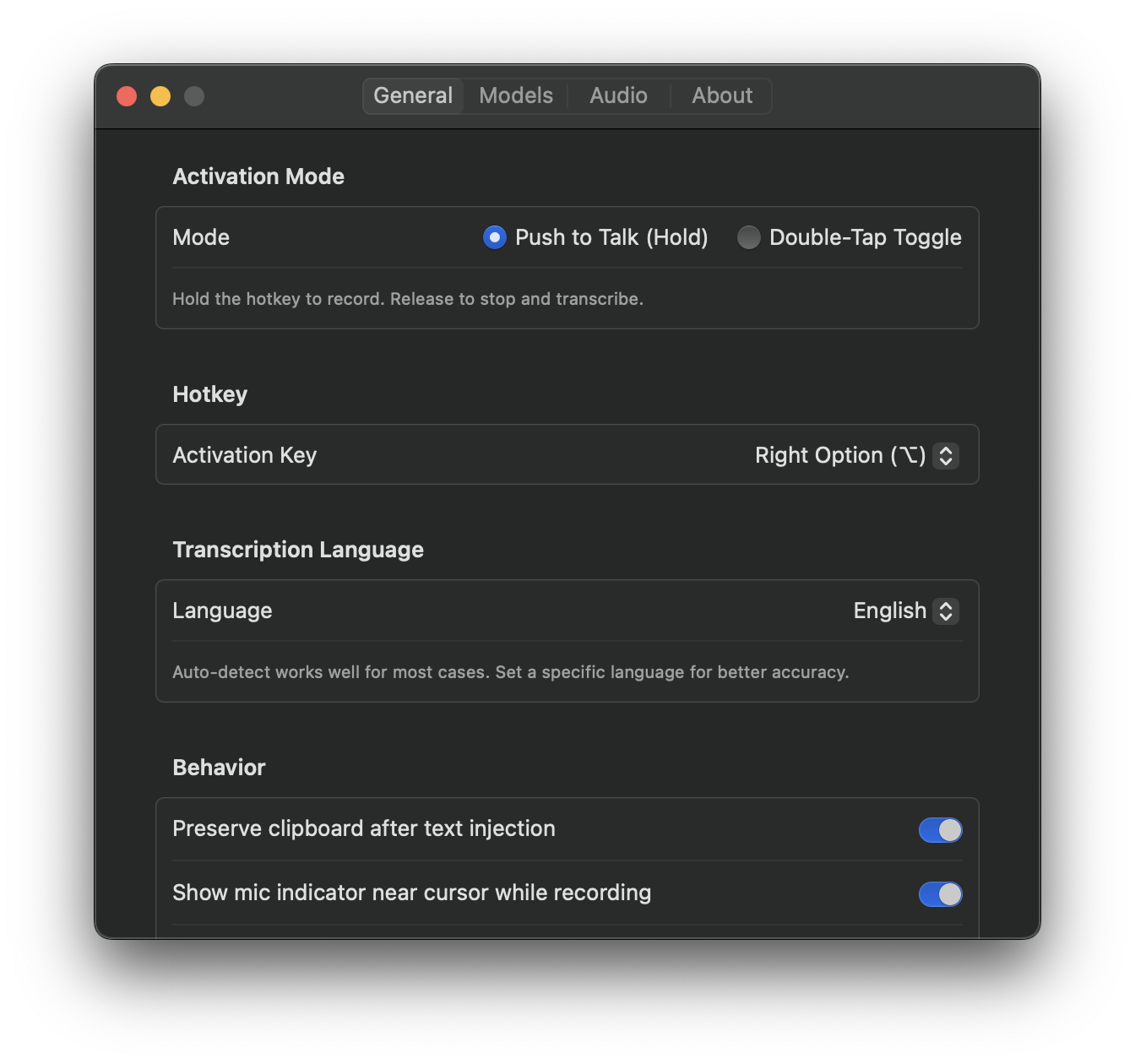
There are two ways to enable this feature:
Via Settings
- Open VocaMac and click the menu bar icon
- Select Settings from the popover
- Go to General → Launch at Login
- Toggle the switch to enable
Via Setup Wizard
If you’re setting up VocaMac for the first time, the Setup Wizard will offer to enable Launch at Login. Just check the box during initial setup.
Once enabled, the app will start automatically on your next login or restart.
Sync with System Settings
VocaMac’s Launch at Login toggle is always in sync with macOS System Settings. If you enable Launch at Login in VocaMac, it will also appear in:
System Settings → General → Login Items
You can manage it from either place. If you disable it in System Settings, VocaMac’s toggle will reflect that change. This bidirectional sync ensures you always have a single source of truth.
You can verify this yourself:
- Enable Launch at Login in VocaMac
- Open System Settings → General → Login Items
- Scroll to the “Allow in the Login Items” section
- VocaMac will be listed there
If you ever want to disable it, you can do so from System Settings without opening VocaMac.
Always Available in Your Menu Bar
With Launch at Login enabled, VocaMac is always available. There’s no startup delay. The moment you log in, the app is ready:
- The menu bar icon appears instantly (along with your other menu bar apps)
- All your settings are loaded (activation mode, hotkey, silence thresholds, etc.)
- Accessibility permissions are already granted (from your previous session)
- The WhisperKit model is cached, so transcription is fast
This means you can start dictating immediately. No waiting for the app to launch. No loading screens. Just open any text field and press your hotkey.
Lightweight Resource Usage
VocaMac is designed to be a background app. It uses minimal system resources when idle:
- Memory: approximately 50-100 MB at rest
- CPU: near zero when not recording
- Battery: negligible impact on battery life
- Network: no network activity unless you’re downloading a new model
With Launch at Login enabled, VocaMac won’t slow down your Mac’s startup time or consume meaningful resources while you work. It sits quietly in the background until you need it.
Why Use Launch at Login?
Enabling this feature has several benefits:
Convenience: no need to manually launch VocaMac after every restart or login
Reliability: you won’t accidentally forget to launch the app and lose dictation access mid-session
Consistency: all your settings are preserved across restarts
Simplicity: one less thing to think about; VocaMac just works
Professional workflow: for users who rely on voice dictation throughout the day, having it always available is essential
Disabling Launch at Login
If you ever decide you don’t want VocaMac to start automatically, you can disable it anytime:
- Open VocaMac settings
- Go to General → Launch at Login
- Toggle the switch to disable
Or disable it directly in System Settings → General → Login Items → Allow in the Login Items section.
VocaMac will no longer start at login, but it will still be in your Applications folder and ready to launch manually whenever you want.
Technical Details
VocaMac uses the SMAppService API from the ServiceManagement framework, which is the modern, recommended approach for login items on macOS 13 and later. This API is:
- More reliable than older helper app approaches
- Transparent in System Settings
- Secure since it doesn’t require elevated privileges
- Reversible at any time with a simple toggle
If you’re curious about how this works under the hood, VocaMac’s source code is open and available on GitHub. The implementation is straightforward and uses no workarounds or hacks.
Ready to try Launch at Login?
Install VocaMac - It's Free