Fully Configurable
Choose hotkeys, models, languages, silence detection. Settings window with model management.
Make VocaMac Your Own
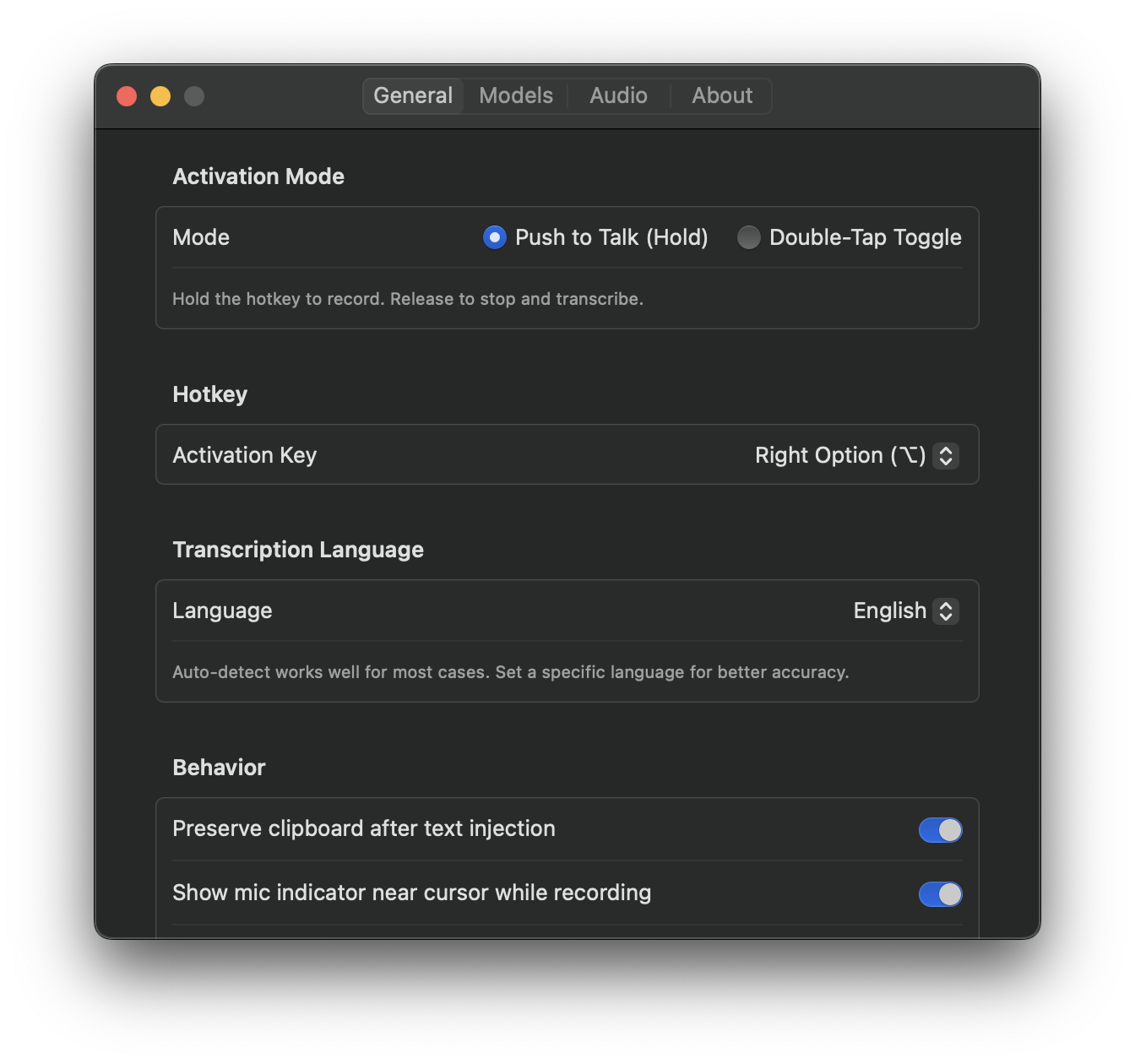
VocaMac understands that everyone has different preferences. Some people use dictation occasionally. Others rely on it for hours every day. Some work in quiet offices. Others dictate in bustling environments. The app adapts to your workflow through comprehensive, intuitive settings.
Every major aspect of VocaMac can be customized. Hotkeys, audio behavior, transcription models, languages, and more. The settings window is organized into clear tabs that match how you think about the app.
Hotkey Configuration
Your hotkey is how you activate VocaMac. The app respects your preference for how you work and lets you choose exactly which key combination suits your workflow best.
Maybe you prefer Control-Space. Perhaps Command-Shift-L feels more natural. You might want something completely different. The settings window presents a simple, elegant hotkey selector. Click, press the keys you want to use, and you’re done.
The hotkey works from anywhere on your Mac. Launch VocaMac from Mail, from Slack, from a web browser, or from any application. As long as VocaMac is running, your hotkey is active and ready.
Model Management
VocaMac includes multiple Whisper models, each offering different tradeoffs between speed and accuracy. The settings window gives you full control over which models are available on your Mac.
The base model is tiny (just 140 megabytes) and transcribes nearly as fast as you can speak. It’s perfect for quick notes or when speed matters more than perfect accuracy.
The small and medium models offer progressively better accuracy at the cost of slightly longer transcription times. They’re ideal for important documents, interviews, or situations where every word needs to be perfect.
The model management interface shows how much disk space each model uses. Download the models you want. Delete the ones you don’t need. Switch between models instantly. You’re always in control of what’s installed on your Mac.
Audio Settings
Audio behavior can make or break the dictation experience. VocaMac includes granular controls for how it handles microphone input and silence detection.
Set the silence detection threshold to match your environment. In a quiet office, a sensitive threshold works well. In a noisier space, you might want to increase it to avoid accidental transcriptions. Adjust the threshold, speak a few test words, and instantly see how the app responds.
Configure the maximum recording duration. If you prefer shorter bursts of dictation, set a reasonable limit. The app will automatically stop recording when you reach it, preventing accidental marathon recording sessions.
Choose your audio input device. If you use an external microphone, a USB headset, or an AirPods Pro, select it directly from the settings. VocaMac remembers your choice and uses it every time.
Language and Transcription Settings
Set your primary language for more accurate transcription. If you dictate in multiple languages, enable auto-detection. The app will listen to what you’re saying and automatically recognize which language you’re using.
Language settings are remembered across sessions. Switch languages whenever you need to. The change takes effect immediately.
General Preferences
The General tab includes behavior options that fine-tune how VocaMac fits into your workflow.
Preserve clipboard content. By default, VocaMac doesn’t overwrite what’s already in your clipboard. If you copy something before dictating, it will be safe.
Show a cursor indicator while recording. A subtle visual indicator in the menu bar helps you know when VocaMac is listening.
Enable sound effects for recording and transcription. Some people love the audio feedback. Others prefer silence. Choose what works for you.
Launch VocaMac automatically when you log in. The app is most useful when it’s always available, so auto-launch makes sense for most users.
About Tab
The About tab shows your app version, links to documentation, and quick access to system information. It’s your reference point for understanding what you’re running and where to find help.
Designed for Simplicity
All of these options exist, but none of them overwhelm you. VocaMac follows Apple’s philosophy of powerful defaults. The out-of-the-box settings work beautifully for most people. The settings window is there for those who want to customize.
Everything is organized logically. Related options are grouped together. Explanations are clear and concise. You can make changes in seconds, and they take effect immediately. No restarts needed. No confusing configuration files to edit.
Whether you’re fine-tuning every detail or accepting sensible defaults, VocaMac gives you the control you need to make it work exactly how you want.
Ready to try Fully Configurable?
Install VocaMac - It's Free